

Moving electronics without data loss or damage starts before the truck arrives. Learn what to back up, unplug, and pack first for a safe transition.
Moving electronics safely means protecting two separate things at once: the data stored inside them and the physical hardware itself. Most people focus on bubble wrap and forget that a dropped external drive or a corrupted backup can cost far more than a cracked monitor. Before a single cable gets coiled up, the priority is making sure nothing important only exists in one place.
This matters more than most moving checklists admit. A desktop tower that gets jostled in a truck for six hours is a real risk to spinning hard drives, and a laptop left in a hot car can suffer battery damage that never shows up until weeks later. Getting the order of operations right, back up, document, power down, then pack, is what separates an uneventful move from a scramble to recover tax records or family photos.
Back up anything you cannot recreate: personal files, financial records, photos, and any device-specific settings you rely on daily. Do this at least a few days before moving day, never the morning of, so you have time to confirm the backup actually worked.
For computers, an external drive backup plus a cloud copy gives you redundancy in case the drive itself is damaged in transit. Phones and tablets should sync to their cloud accounts or get backed up to a computer. If you run a home office, export browser bookmarks, password manager vaults, and any software license keys that live only in an email inbox you might lose access to. Smart home hubs and routers often store custom configurations, so screenshot or write down your network settings, device pairings, and any static IP assignments before you unplug anything.
Shut computers down completely rather than leaving them in sleep mode, since a sleeping laptop can overheat inside a sealed box. Give drives time to spin down fully before you move the unit, especially desktop towers with mechanical hard drives.
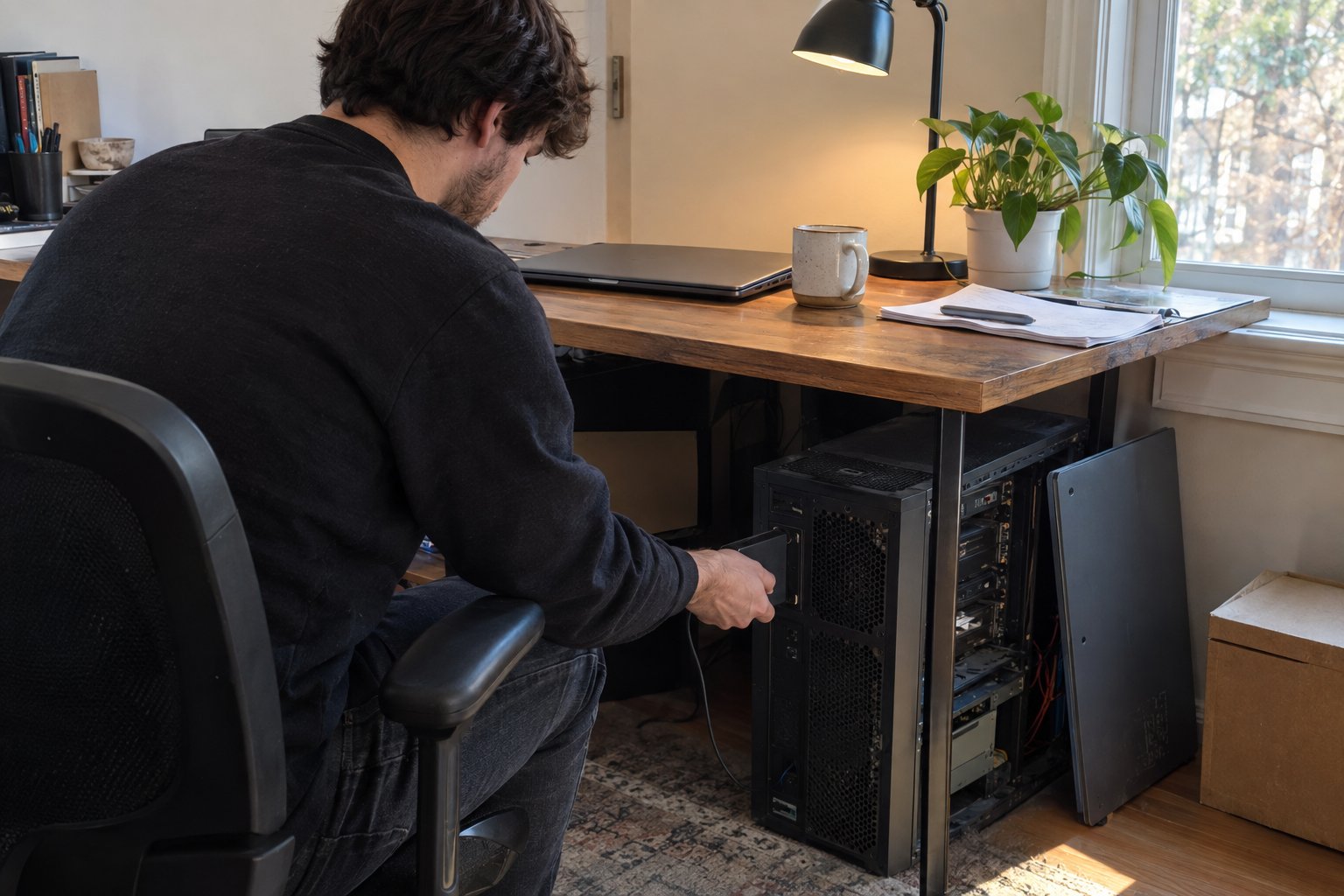
Once backups are confirmed, disconnect peripherals and label every cable with masking tape and a marker, noting which port it came from. Photograph the back of your desktop tower and any complex cable setups (multi-monitor rigs, home theater receivers, mesh network nodes) so reassembly at the new place does not turn into guesswork. If you have a desktop with a mechanical hard drive, some manufacturers recommend engaging any built-in head-parking feature before transport; check your device documentation if you are unsure.
Original manufacturer boxes with molded foam inserts are the best protection you can use, since they were designed around that exact device's weight and shape. If you no longer have them, anti-static bubble wrap and sturdy double-walled boxes are the next best option.
Wrap screens face-to-face with a soft cloth or packing paper between them before bubble wrapping, and never let glass surfaces touch cardboard directly. Fill empty space inside boxes so nothing can shift during transport; loose electronics inside a box are more likely to suffer scratches or cracked housings than snugly packed ones. Keep small components like remotes, chargers, and mounting hardware in labeled zip bags taped to the outside or inside of the relevant box so they do not get separated and lost.
Flat-panel screens should travel upright, never flat, since the internal panel can crack or develop pressure spots under stacked weight. If you kept the original box, use it. Otherwise, a TV moving box with corner protectors and a snug fit prevents the kind of flex that damages the panel even when the glass looks fine from the outside.
Small, high-value, or irreplaceable electronics like laptops, external drives, and cameras are safer traveling with you in a personal vehicle when that is practical. Temperature swings, vibration over long stretches, and the sheer time spent in transit all add risk on a truck, especially for anything with a battery or spinning drive.
Larger items like desktop towers, printers, and home theater equipment generally have to go on the truck, so this is where the packing quality from the previous section matters most. If you are working with movers on a long distance move, ask how electronics are loaded relative to heavier furniture; you want them positioned so nothing can shift or settle onto them during a multi-day trip.
Let electronics sit at room temperature for a couple of hours before powering them on if they were exposed to heat or cold during transport. This gives any internal condensation a chance to clear and reduces the risk of a short.
Use your labeled cables and reference photos to rebuild your setup in the same configuration you had before, starting with the router and network gear so everything else can reconnect automatically. Test each device individually rather than plugging in everything at once; if something does not power on right away, isolate it before assuming the worst. Most electronics that were backed up and packed carefully survive a move without issue, but having that backup means a hardware problem is an inconvenience rather than a loss.
If your move involves a full home office setup beyond just the electronics, a coordinated packing approach for the desk, files, and equipment together tends to go more smoothly than handling the tech in isolation. For households with a lot of specialty electronics and no time to manage backups and packing on top of everything else, our professional packing services can take that piece off your plate entirely.
Ready to plan the rest of your move around a setup this delicate? Get a moving quote and we will walk through exactly how your electronics and the rest of your home will be handled.
Request a personalized quote and see how careful planning and reliable service make every move smoother. Our team prepares each step to handle challenges safely and efficiently.
No, computers should be fully shut down rather than left in sleep mode before a move. A sleeping laptop can overheat inside a sealed box, and a desktop with a spinning hard drive needs time to power down completely to avoid damage from vibration.
Both. Phones and tablets should sync to their cloud accounts or back up to a computer just like desktops and laptops do. Anything you cannot easily recreate, contacts, photos, notes, deserves a backup regardless of which device it lives on.
Yes, temperature swings during transport can affect batteries and, in some cases, cause internal condensation when a device moves from cold to warm environments. Letting electronics sit at room temperature for a couple of hours before powering them on reduces this risk.
Label every cable with tape and a marker noting which device and port it came from, and photograph complex setups like multi-monitor desks or home theater receivers before disconnecting anything. This turns reassembly into a quick reference job instead of guesswork.
Carry it with you if at all possible. External drives, especially ones with spinning platters, are vulnerable to vibration and impact, and they often hold data that has no second copy if something goes wrong in transit.
No long forms, no delays. Just a move that’s ready when you are. Secure your moving date today.